Práctica con un compañero: sesión con dos dispositivos
Aprenda consejos y estrategias efectivas para trabajar en colaboración con un amigo mientras usa dos dispositivos.

Written by Jeri Ellis
Updated at August 29th, 2025
En este artículo, se muestran dos dispositivos para usar SimCapture for Skills cuando se practican habilidades con un compañero. Si le interesa el método de autograbación, consulte Cómo usar SimCapture for Skills: autograbación .
Cosas que debes saber antes de empezar
- La interfaz de SimCapture for Skills es accesible en cualquier dispositivo que permita un navegador web, incluidos todos los teléfonos inteligentes y tabletas.
- El inicio de sesión único (SSO) está disponible si su organización ha sido habilitada para esta función.
- Le recomendamos que utilice una conexión wifi estable.
Roles de usuario
Hay tres roles de usuario en la interfaz de SimCapture for Skills:
- Administrador del sistema : tiene permiso para configurar el sistema SimCapture y puede otorgar permiso a los administradores para crear cursos y usuarios.
- Administrador – Crear y administrar cursos.
- Participante : eres tú, el alumno.
El alumno es el participante que realizará la habilidad, mientras que el observador (par) Es el participante que evaluará la habilidad.
A modo de resumen, el alumno seleccionará el curso y el escenario que desea practicar, elegirá la opción de práctica con un compañero y elegirá el método de emparejamiento, en este caso, dos dispositivos. A continuación, el alumno generará un código.
Mientras el alumno realiza estas acciones, el compañero observador (observador) iniciará sesión y seleccionará "observar a un compañero", que se encuentra en la página de lista inicial del curso. Luego, el observador ingresará el código del alumno.
Una vez hecho esto, el alumno seleccionará Comenzar práctica, dejará su teléfono y realizará la habilidad mientras el observador lo evalúa.
Echemos un vistazo a los detalles paso a paso que se muestran a continuación.
Escenarios de igual a igual
Al utilizar la opción Practicar con un compañero, una persona se designa como alumno y la otra como observador.
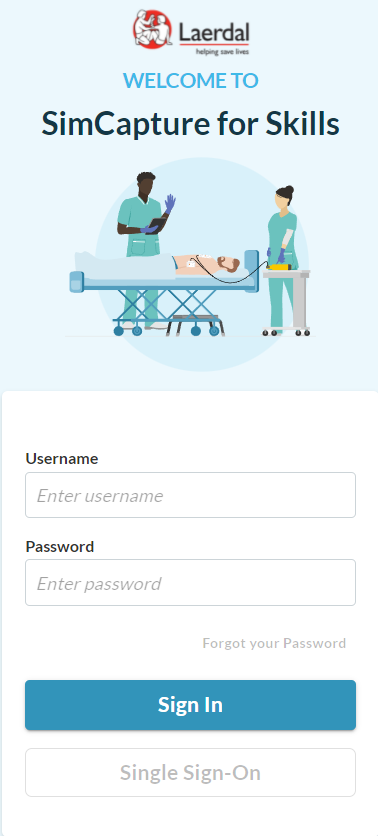
- Inicie sesión en su sitio SimCapture for Skills usando [yoursimcapturedomain]. simcapture.com/skills .
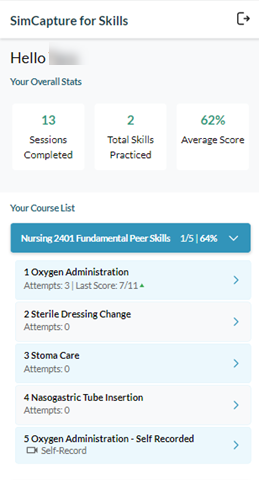
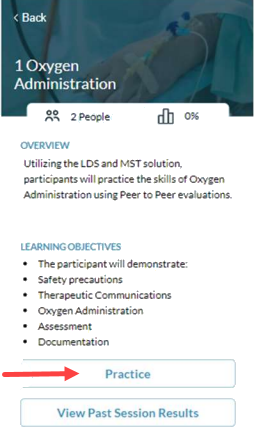
- En Tu lista de cursos , como alumno , selecciona una habilidad que no sea de autoaprendizaje. Aquí verás la descripción general y los objetivos de aprendizaje del escenario.
- Como alumno , haga clic en Practicar
- Como alumno , haga clic en Practicar con un compañero como su modo de práctica. para completar la evaluación.
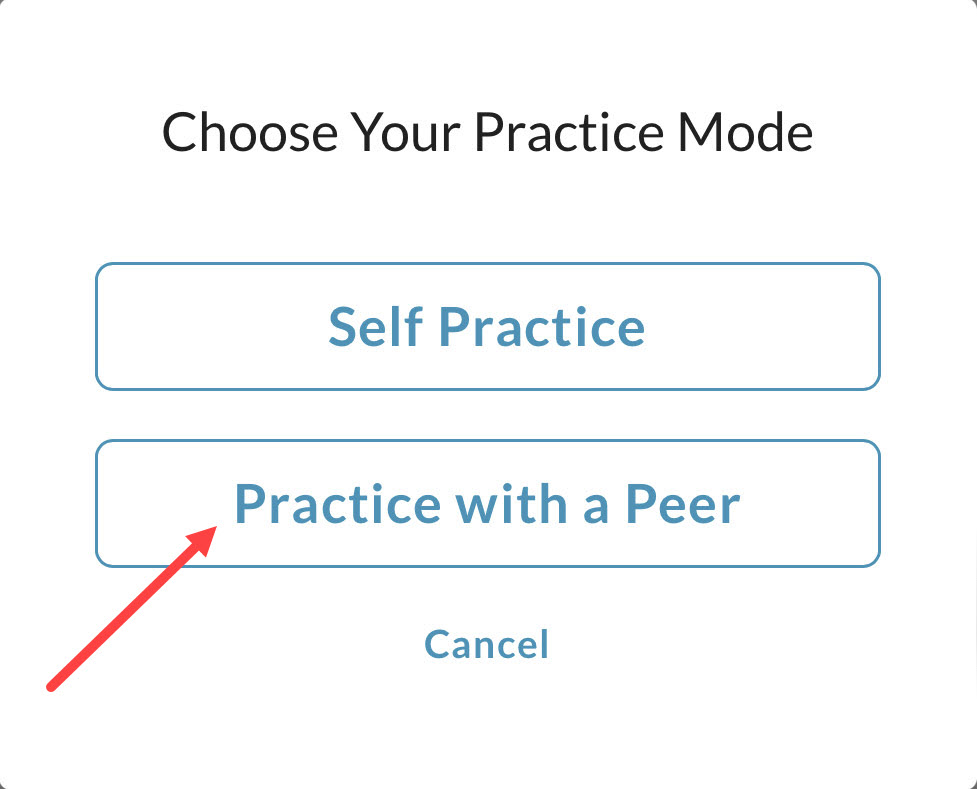
Asigna a tu compañero observador
Como alumno , una vez que haya elegido la habilidad que practicará con un compañero, elegirá un observador y dos dispositivos para el método de emparejamiento y generará un código que compartirá con su compañero que lo está observando practicar y él ingresará este código en su dispositivo.
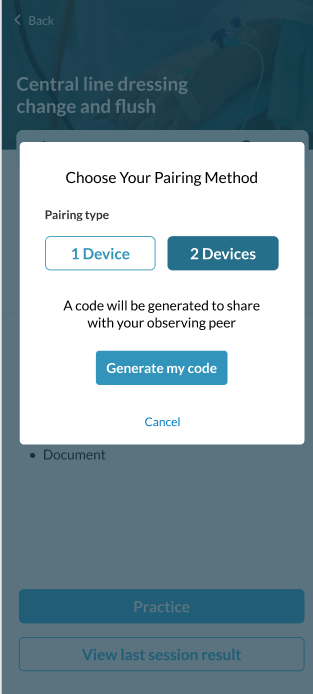
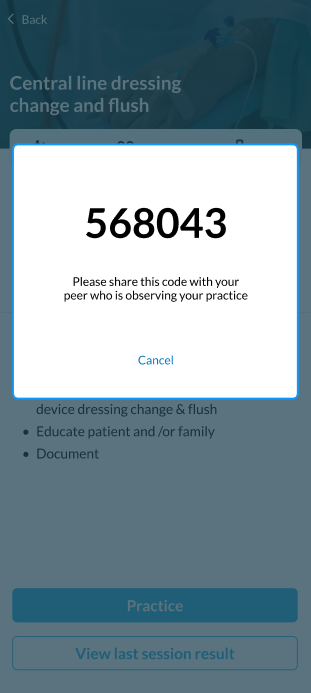
Nota: No se muestra ninguna reflexión previa aquí. El observador será dirigido a la reflexión previa una vez que comience la evaluación.
Una vez que el observador hace clic en Mantener esta sesión , el alumno hace clic en Comenzar práctica y comenzará la evaluación.
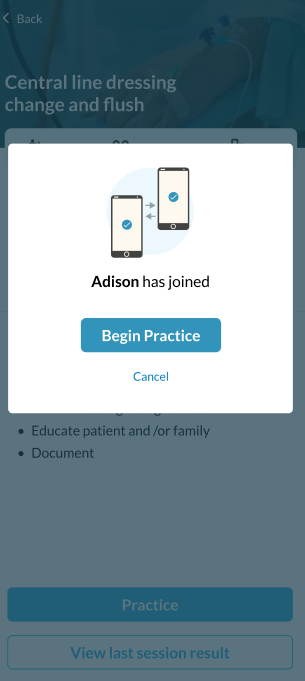
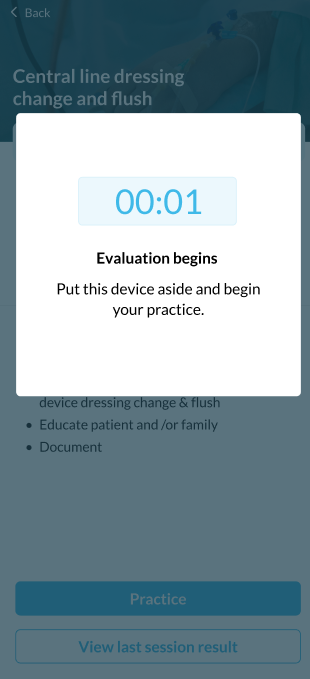
Comienza la evaluación
Si no hay una reflexión previa, el observador será dirigido a una página de lista de verificación de habilidades. En este punto, el observador evaluará al alumno que realiza la habilidad marcando los elementos realizados como completos o incompletos . Una vez que el alumno haya terminado, el observador hará clic en Enviar lista de verificación. Esto generará un mensaje de Lista de verificación completada en la pantalla del dispositivo del alumno.
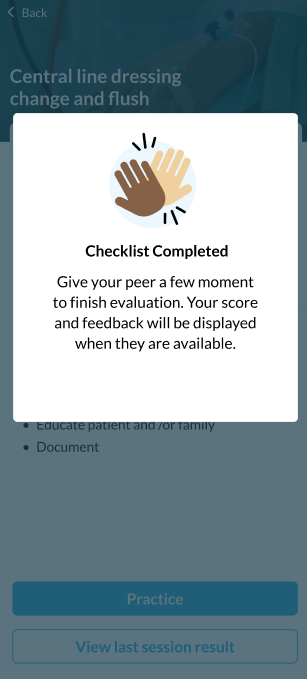
Comentarios
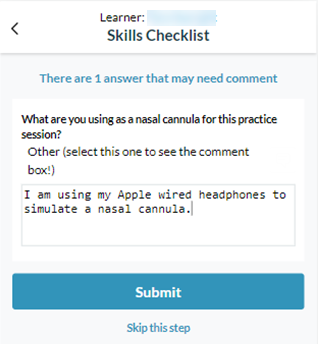
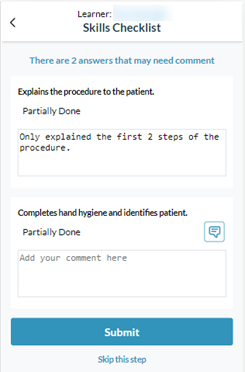
Algunas respuestas (según la configuración del administrador que crea el escenario) solicitarán al alumno que agregue un comentario. Este comentario se puede escribir seleccionando el ícono de comentario y escribiendo el comentario en el cuadro de texto. Las reflexiones previas y posteriores, así como la lista de verificación en vivo, se pueden configurar para que incluyan este tipo de preguntas.
Retroalimentación de la sesión
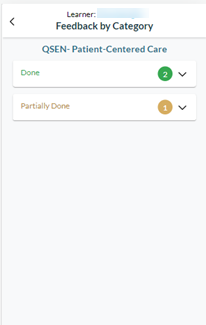
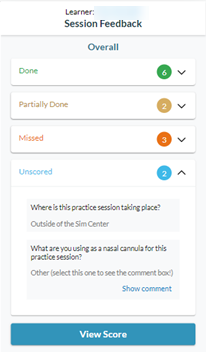
Los alumnos pueden ver los comentarios detallados de la sesión antes de llegar a la página de puntuación seleccionando la flecha desplegable para cada uno de los valores de las preguntas. Estos comentarios incluyen las reflexiones previas y posteriores, así como la lista de verificación en vivo y muestran el estado de las preguntas como Completadas, Parcialmente completadas, Perdidas y Sin puntuación.
- Hecho: Las respuestas elegidas reciben el crédito completo.
- Parcialmente terminado: las respuestas elegidas reciben menos puntos que el máximo número posible de puntos para esa pregunta.
- Perdido: Sin crédito.
- Sin puntuación : pregunta(s) que no tenían valor de puntos.
 Tanteo
Su pantalla de puntuación muestra la siguiente información.
- Puntuación total
- Fecha de los intentos
- Intentos totales
- Puntuación más alta anterior
- Minutero
- Desglose de la puntuación por categoría de pregunta
- Comentarios detallados por categoría de pregunta
La puntuación total se mostrará en 3 colores e indica lo siguiente:
- Verde : indica una nueva puntuación alta
- Negro : indica que la puntuación se ha mantenido igual.
- Naranja : indica que la puntuación está por debajo de la puntuación más alta anterior.
Nota: El cronómetro cuenta la duración de la sesión. Esto resulta útil si la evaluación de la habilidad se realiza dentro de un período determinado. 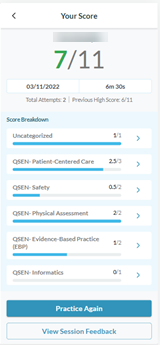
Categorías de preguntas
Las categorías de preguntas se pueden aplicar a todo un currículo para proporcionar una evaluación de las áreas que requieren atención de un individuo, una cohorte o un programa a medida que se acumulan datos.
En este ejemplo, se puede ver el uso de las categorías de competencias QSEN (educación sobre calidad y seguridad en enfermería). Estas se asignan a preguntas generales para que el alumno pueda identificar en qué áreas necesita ayuda. También es útil para los administradores, ya que pueden identificar lagunas en el conocimiento a través de la interfaz de administración.