CA French (Canada)
US English (US)
KR Korean
MX Spanish (Mexico)

Contact Us

If you still have questions or prefer to get help directly from an agent, please submit a request.
To find the contact information for your local office please visit:

Laerdal Customer Service
  • Contact Us
English (US)
CA French (Canada)
US English (US)
KR Korean
MX Spanish (Mexico)
  • Home
  • SimCapture for Skills Help
  • SimCapture for Skills Administration Documentation
  • Tutorials for the Administrative User

Assigning and Evaluating Student Self-Record Sessions in SimCapture

Unlock new capabilities for skills assessment in your classroom by assigning and evaluating student self-recorded sessions with SimCapture.

Written by Jeri Ellis

Updated at May 14th, 2026

Contact Us

If you still have questions or prefer to get help directly from an agent, please submit a request.
To find the contact information for your local office please visit:

Laerdal Customer Service

Table of Contents

Before You Begin Supported Browsers How Self‑Record Evaluations Can Be Assigned Assigning a Self‑Record Evaluation Scheduling a Self‑Record Scenario Adding an Instructor Evaluation Adding Annotations Finalizing and Releasing the Evaluation Admin Checklist: Confirming Completion
  • SimCapture Cloud Release Notes
    Release Notes Archive
  • SimCapture Cloud Administrator and Faculty Help
    SimCapture Cloud Getting Started SimCapture Cloud Tutorials SimCapture Cloud Troubleshooting
  • SimCapture Cloud Learner Help
  • SimCapture On-Premise Help
    SimCapture On-Premise Release Notes SimCapture On-Premise Migration tool SimCapture On-Premise Enterprise SimCapture On-Premise Pro SimCapture On-Premise Enterprise with Exam System SimCapture On-Premise Use Cases SimCapture On-Premise Getting Started
  • SimCapture for Skills Help
    SimCapture for Skills Administration Documentation SimCapture for Skills Student Documentation SimCapture for Skills Use Cases SimCapture for Skills Tutorial Videos
  • SimCapture Mobile Camera App
  • SimCapture Companion Apps Help
  • SimCapture Integrations Help
  • Samaritan AI Help
    Evaluation Builder Session Video Transcription
  • SimCapture Cloud Use Cases
    Enterprise Cloud Use Cases Pro Cloud Use Cases
  • Hardware and Network Technical Information Help
  • Glossary
+ More

This article explains how System Administrators (and other users with appropriate permissions) can assign, schedule, and evaluate student self‑record sessions in SimCapture.

Use this workflow to control who evaluates a self‑recorded skill , when students can submit recordings , and when scores and feedback are released .

Before You Begin

Before assigning or evaluating self‑record sessions, confirm the following:

  • A self‑record evaluation has already been created for the scenario. 
    • See  How to Create an Evaluation 
  • The scenario exists within the correct course
    • See  How to Create a Scenario 
  • You have permission to manage evaluations and course settings
Delete

Evaluations must be created before they can be assigned, scheduled, or completed.

Supported Browsers

For the best experience when reviewing recordings and evaluations:

  • Chrome – Recommended
  • Safari – Supported

How Self‑Record Evaluations Can Be Assigned

Self‑record evaluations can be configured in one of three ways:

  • Self‑evaluation – Students score their own recording
  • Peer‑evaluation – Another participant evaluates the recording
  • Instructor‑evaluation – An instructor or course contributor evaluates the recording

You can assign evaluators individually or in bulk, depending on your course setup.

Assigning a Self‑Record Evaluation

Use this method to control who evaluates a self‑recorded scenario.

Steps

  1. Select the course you want to work in
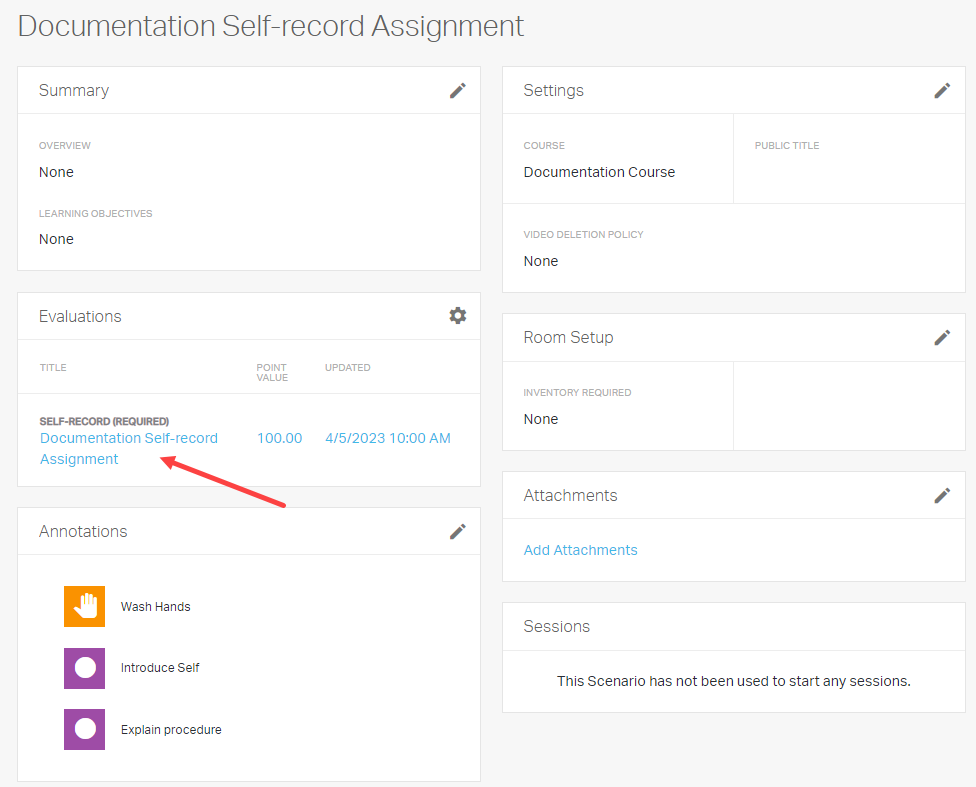
  2. Select the scenario
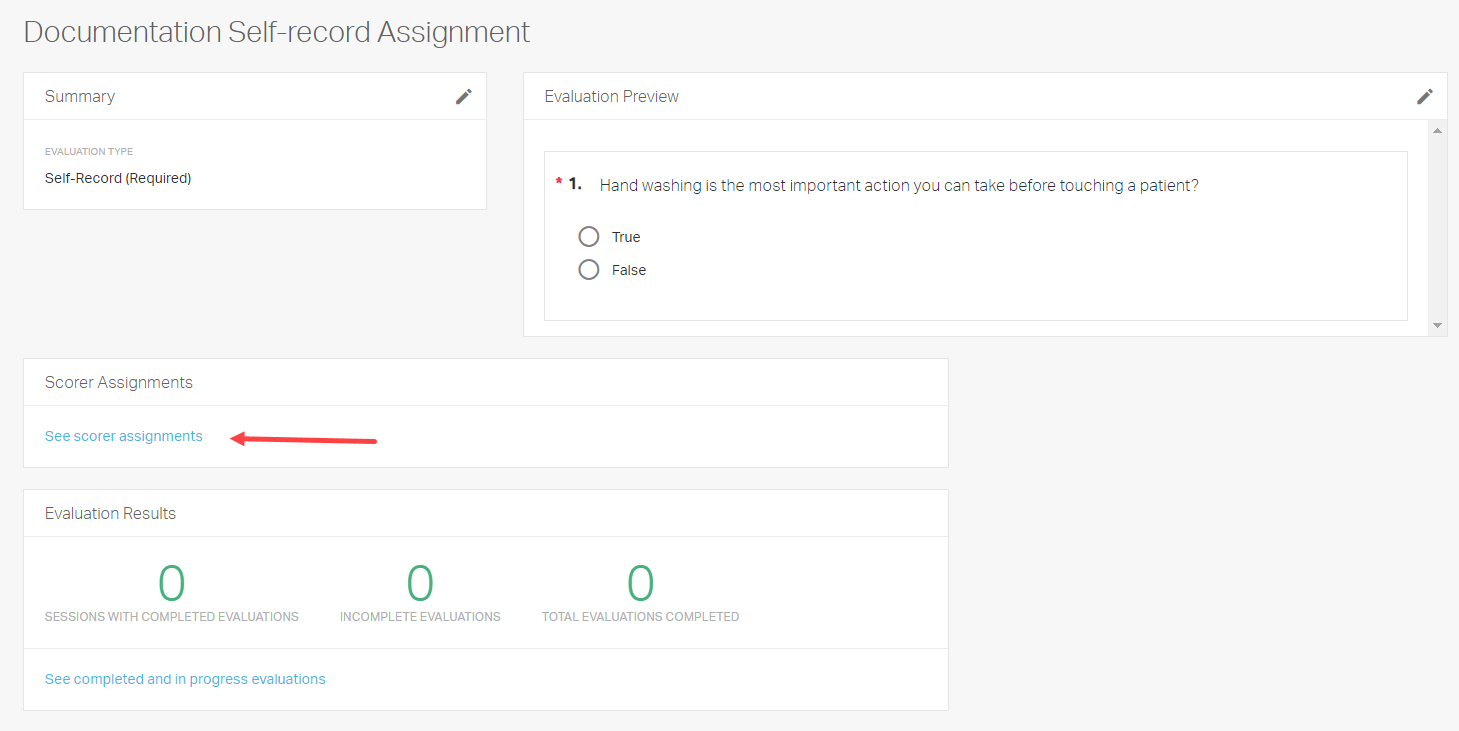
  3. Go to the Evaluation pod and select the evaluation
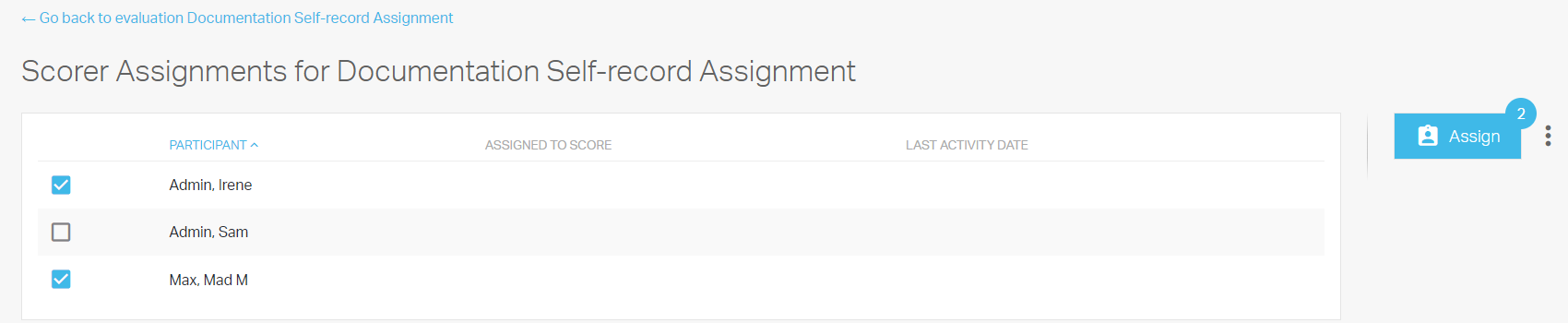
  4. Select See scorer assignments
  5. Select:
    • An individual student, or
    • All students
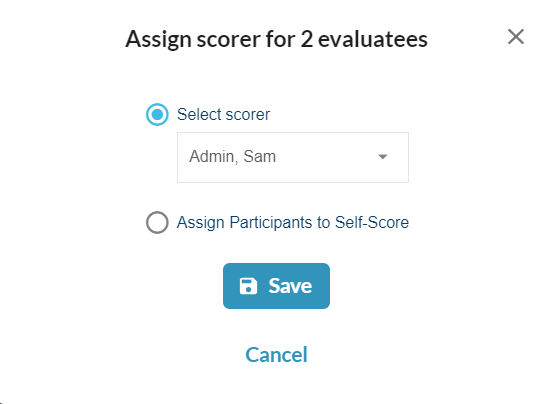
  6. Choose one of the following:
    • Assign Participants to Self‑Score , or
    • Select a peer or course contributor from the dropdown
  7. Select Save

The evaluation is now assigned based on your selected scoring method.

Scheduling a Self‑Record Scenario

Scheduling controls when students are allowed to submit recordings .

Steps

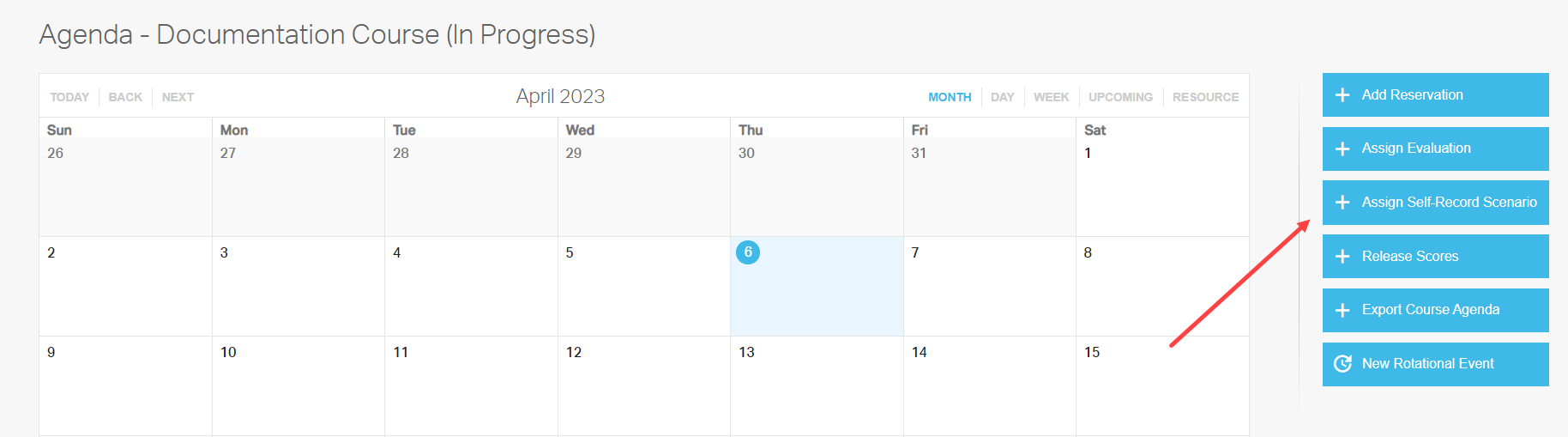
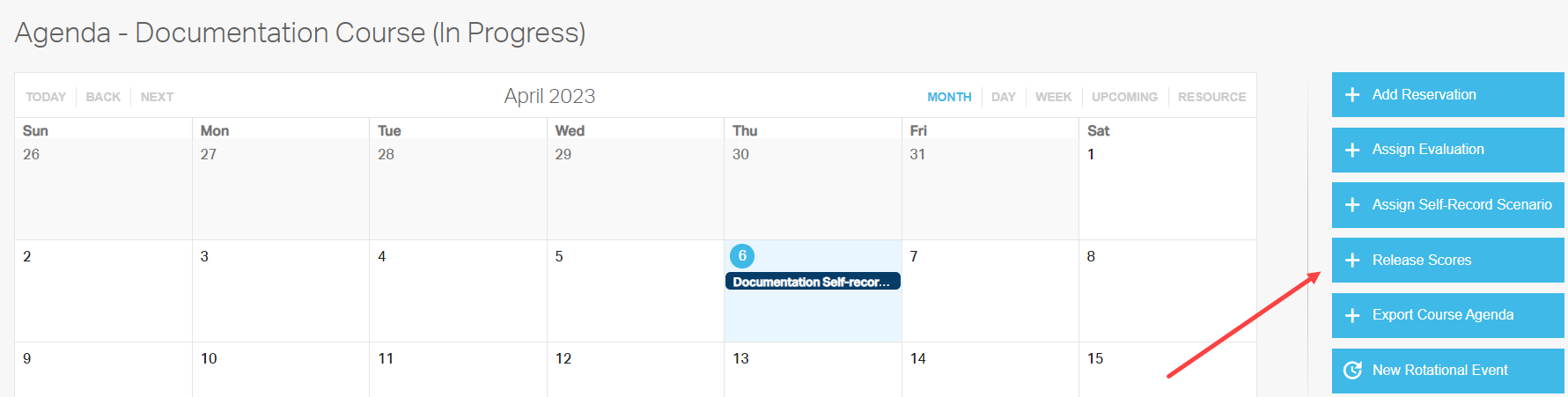
  1. Go to the Course Agenda pod and select Go to full agenda
  2. Select Assign Self‑Record Scenario
  3. Choose the scenario
  4. Set:
    • Release date and time
    • Optional retract date and time
  5. Assign the scenario to:
    • All course participants , or
    • Selected users
  6. Select Save

To allow students to view results:

  1. Return to the Agenda
  2. Select Release Scores
  3. Choose your score‑release options and select Save

Once released, students can submit self‑recordings.

Adding an Instructor Evaluation

Instructor evaluations are completed after a student has submitted a self‑record session.

Steps

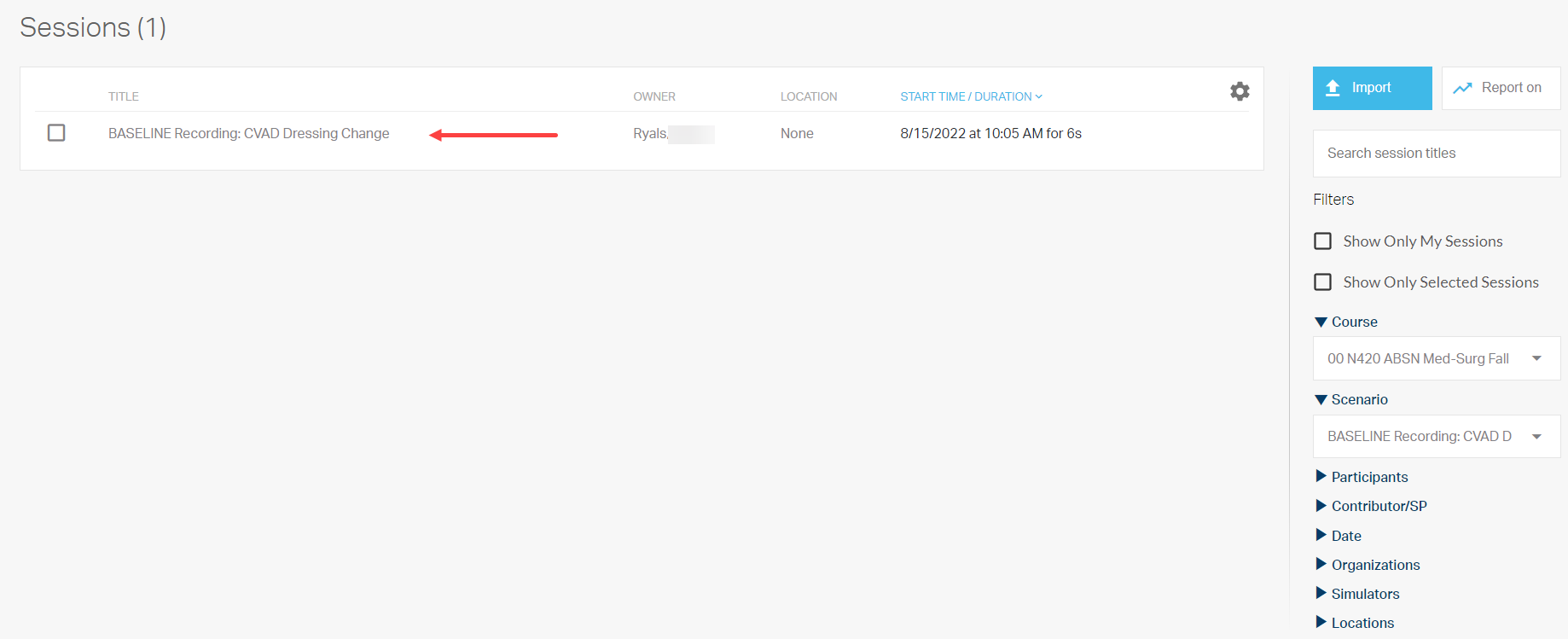
  1. Select the Sessions tab
  2. Open the student’s self‑record session
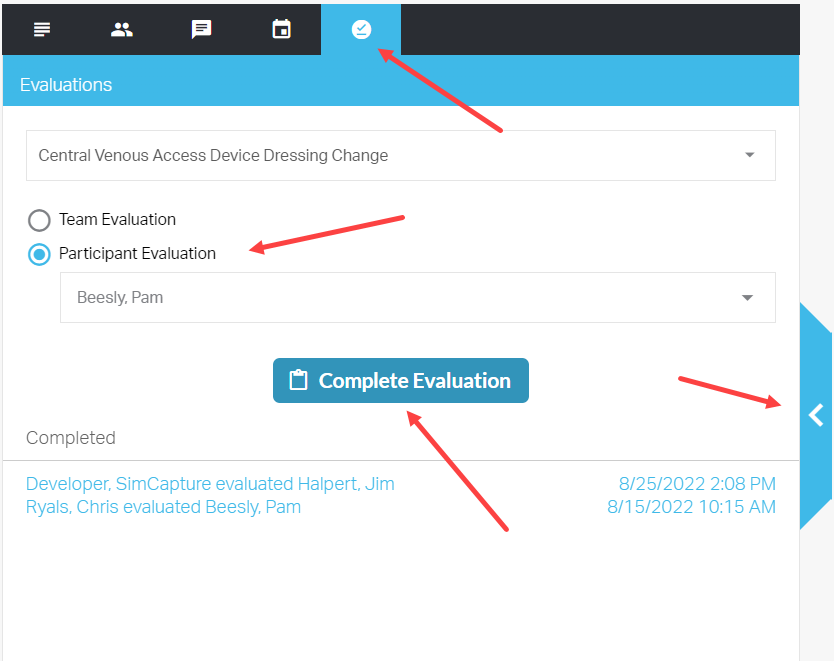
  3. Open the blue sidebar on the right
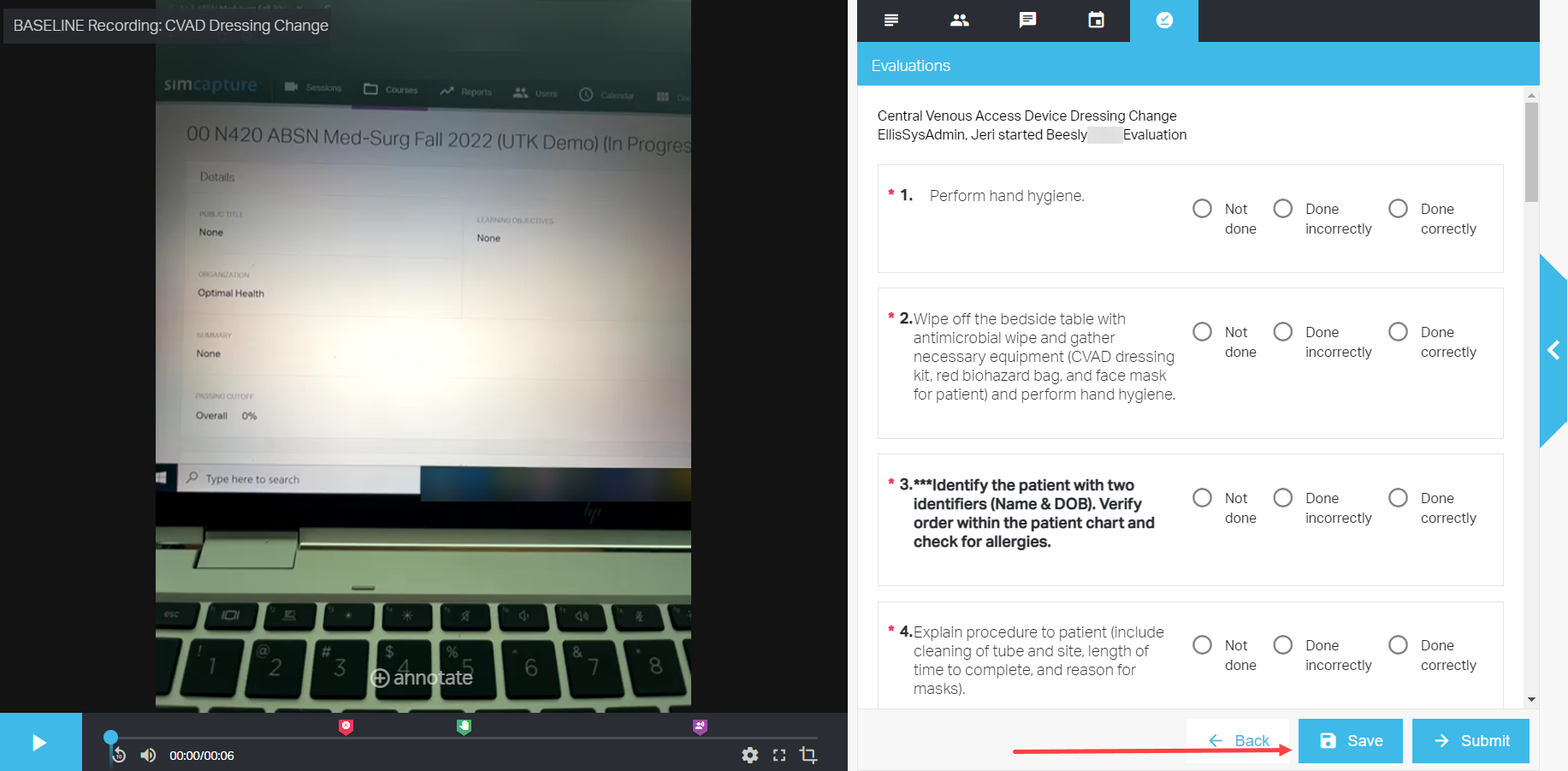
  4. Select the checkmark icon to open the Evaluations tab
  5. Select Participant Evaluation
  6. Choose the student’s name and select Complete Evaluation
  7. Review the recording and checklist
    • Select Save at any time to save progress

Adding Annotations

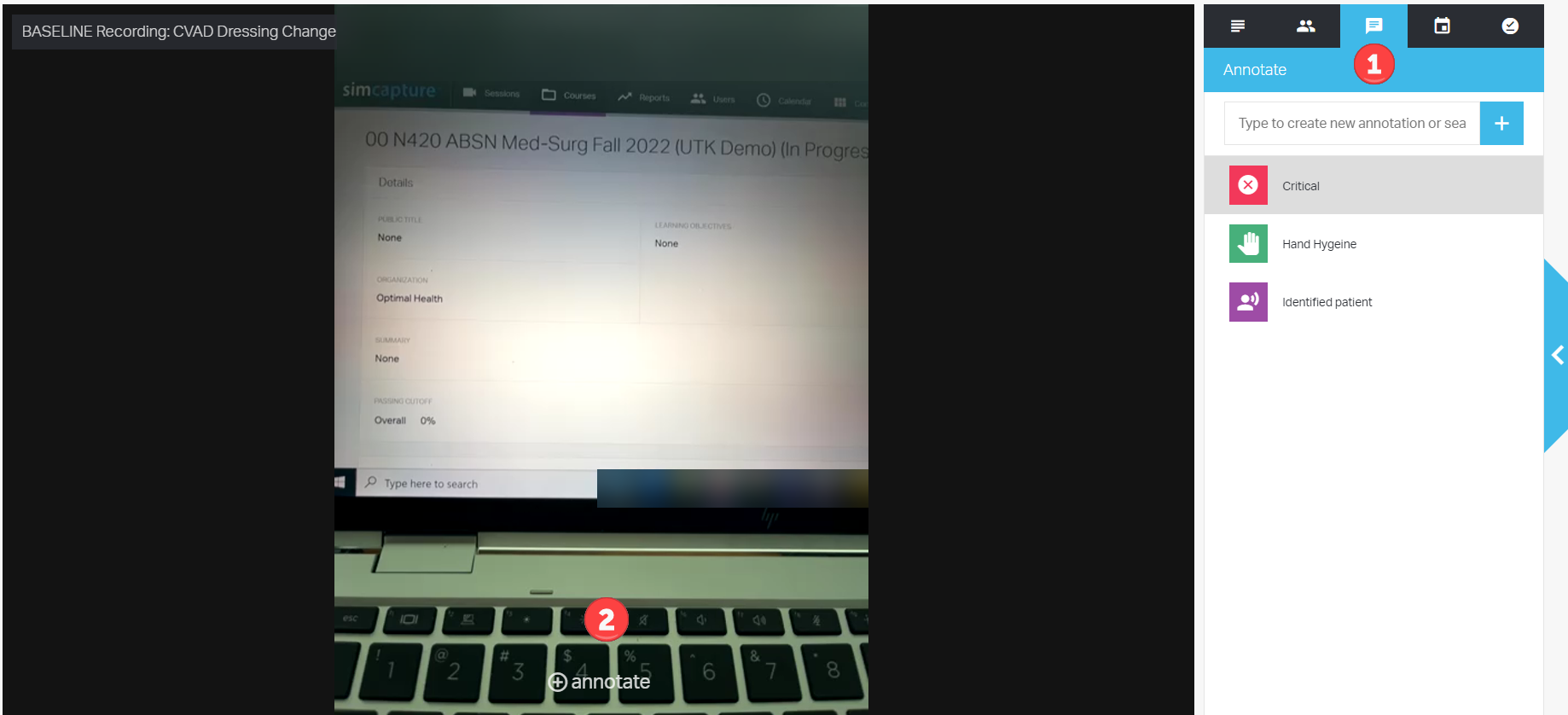
Annotations help provide time‑specific feedback during student review and reflection.

Option 1: Predefined Annotations

  1. Select the text icon in the session viewer
  2. Choose annotations created in System Setup

Option 2: Ad‑Hoc Annotations

  1. Scroll to the bottom of the session viewer
  2. Select Annotate
  3. Add custom annotations directly to the video timeline
Delete

Annotations are visible to students during reflection.

Finalizing and Releasing the Evaluation

When your review is complete:

  1. Select Save and Submit
  2. Based on score‑release settings, students may immediately see:
    • Their evaluation
    • Their video recording
    • Instructor annotations

Admin Checklist: Confirming Completion

Before moving on, confirm that:

  • Evaluations have been submitted
  • Scores are released (if intended)
  • Students can view feedback and annotations as expected
peer evaluation instructor evaluation assign evaluation student evaluation self-record session simcapture assign participants scorer assignments evaluation pod course scenario self-evaluation release scores assign self-record scenario course agenda session viewer complete evaluation predefined annotations ad-hoc annotations save and submit chrome safari supported browsers system administrator video evaluation annotation tools student feedback session checklist evaluation workflow

Was this article helpful?

Yes
No
Give feedback about this article

Related Articles

  • SimCapture for Skills: How to Use the Self-Record Feature
  • Practice With a Peer Using Two Devices | SimCapture for Skills
  • Practice With a Peer Using One Device | SimCapture for Skills

Country and Language selector

Americas

  • América Latina (Español)
  • Brasil
  • Canada
  • USA

Asia / Pacific

  • Australia
  • China - 简体中文
  • Hong Kong
  • India
  • Japan - 日本
  • Korea - 한국어
  • Malaysia
  • New Zealand
  • Singapore (English)

Europe

  • België (Nederlands)
  • Belgique (Français)
  • Danmark
  • Deutschland
  • España
  • France
  • Italia
  • Nederland
  • Norge
  • Österreich
  • Polska
  • Schweiz
  • Suomi
  • Sverige
  • United Kingdom

Location not listed?

  • International (English)
Top
  • Products

    • Simulation & Training
    • Skills Proficiency
    • Courses & Learning
    • Medical Devices
  • Services

    • Educational Services
    • Technical Services
    • Resuscitation Quality Improvement
    • NESTLED
  • Insights

    • Events
    • SUN
  • Support

    • Contact Us
    • Customer Service
    • Product Catalogue
    • Product Downloads
    • Product Support & FAQs
  • About Us

    • One Million Lives - Our shared goal for 2030
    • Impact Update - Laerdal report on sustainability
    • Working at Laerdal
    • Our Partners
  • Facebook
  • Twitter
  • YouTube
  • Privacy Policy
  • Terms of Use
  • Sitemap
  • Whistleblower Channel
Copyright © 2022 Laerdal Medical. All Rights Reserved.

Knowledge Base Software powered by Helpjuice

Definition by Author

0
0
Expand