CA French (Canada)
US English (US)
KR Korean
MX Spanish (Mexico)

Contact Us

If you still have questions or prefer to get help directly from an agent, please submit a request.
To find the contact information for your local office please visit:

Laerdal Customer Service
  • Contact Us
English (US)
CA French (Canada)
US English (US)
KR Korean
MX Spanish (Mexico)
  • Home
  • SimCapture for Skills Help
  • SimCapture for Skills Student Documentation
  • Tutorials for the Learner/Student

SimCapture for Skills: How to Use the Self-Record Feature

Learn how to use the self-record feature of SimCapture to capture and review your skills development.

Written by Jeri Ellis

Updated at May 14th, 2026

Contact Us

If you still have questions or prefer to get help directly from an agent, please submit a request.
To find the contact information for your local office please visit:

Laerdal Customer Service

Table of Contents

Before You Begin How Self‑Record Evaluation Works Viewing Feedback and Scores Understanding Your Score Troubleshooting Common Issues Why Use Self‑Record?
  • SimCapture Cloud Release Notes
    Release Notes Archive
  • SimCapture Cloud Administrator and Faculty Help
    SimCapture Cloud Getting Started SimCapture Cloud Tutorials SimCapture Cloud Troubleshooting
  • SimCapture Cloud Learner Help
  • SimCapture On-Premise Help
    SimCapture On-Premise Release Notes SimCapture On-Premise Migration tool SimCapture On-Premise Enterprise SimCapture On-Premise Pro SimCapture On-Premise Enterprise with Exam System SimCapture On-Premise Use Cases SimCapture On-Premise Getting Started
  • SimCapture for Skills Help
    SimCapture for Skills Administration Documentation SimCapture for Skills Student Documentation SimCapture for Skills Use Cases SimCapture for Skills Tutorial Videos
  • SimCapture Mobile Camera App
  • SimCapture Companion Apps Help
  • SimCapture Integrations Help
  • Samaritan AI Help
    Evaluation Builder Session Video Transcription
  • SimCapture Cloud Use Cases
    Enterprise Cloud Use Cases Pro Cloud Use Cases
  • Hardware and Network Technical Information Help
  • Glossary
+ More

SimCapture for Skills is a mobile‑friendly platform designed for hands‑on skills practice, supporting both on‑site and remote learning.

The Self‑Record feature allows you to practice independently by recording a video of your skill performance and submitting it for evaluation by yourself, a peer, or an instructor.

If you’re interested in practicing with a peer instead, see Tutorials for the Learner/Student.

Before You Begin

Before starting a self‑record session, make sure you have:

  • A device with a web browser (smartphone, tablet, or computer)
  • A stable internet connection
  • Camera and microphone access enabled when prompted
  • Access to a skill that supports video recording
Delete

Browser note: Chrome is recommended. Safari is also supported.
Tip: Single Sign‑On (SSO) may be available if your organization has enabled it.

A video icon next to a skill indicates that video recording is required.

How Self‑Record Evaluation Works

Self‑recorded sessions can be evaluated by:

  • An administrator
  • A peer
  • You (self‑scoring), if enabled by your program
Delete

Once a session is submitted, scorers cannot be added or changed later.

Submitted videos are included in SimCapture reporting for authorized reviewers.

Step 1: Log In

Go to your SimCapture for Skills site:

https://[yourorganization].simcapture.com/skills

Log in using your organization’s credentials.

Step 2: Choose a Skill

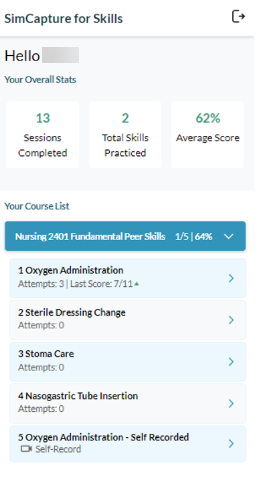
From Your Course List:

  1. Select a skill marked with a video icon
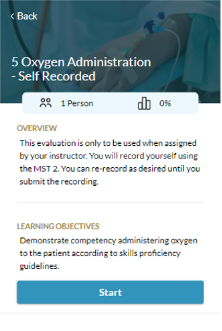
  2. Review the Overview and Learning Objectives
  3. Select Start

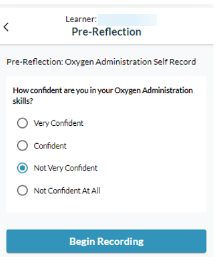
Step 3: Complete the Pre‑Reflection

If configured, answer the Pre‑Reflection questions.

When finished, select Begin Procedure to open the recording screen.

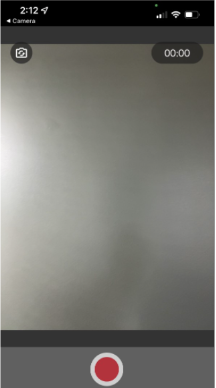
Step 4: Record Your Skill

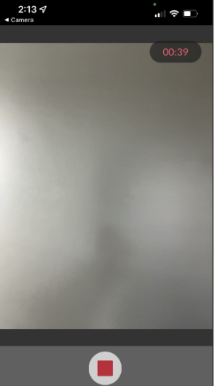
  1. Select the red circle button to start recording
  2. Perform the skill
  3. Select the square button to stop recording

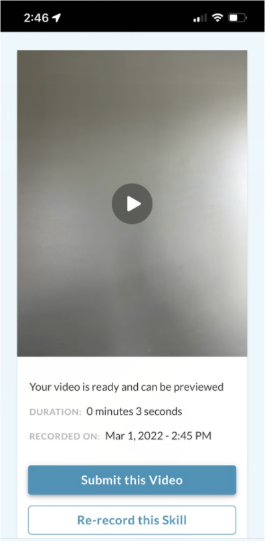
Stopping the recording opens a preview of your video.

Step 5: Review and Submit Your Video

After recording, choose one of the following:

  • Submit This Video – Finalizes your submission
  • Re‑record This Skill – Allows you to try again
Delete

Once you select Submit This Video, you cannot re‑record unless an instructor re‑releases the scenario.

Step 6: Complete the Post‑Reflection

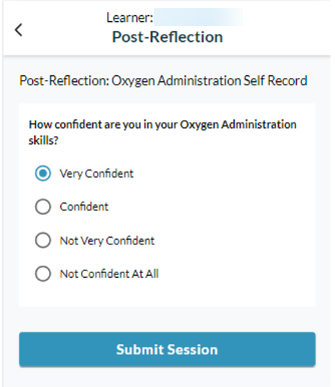
If configured, complete the Post‑Reflection questions and select Submit Session.

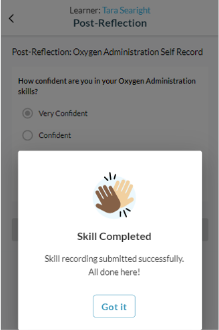
Select Got it to return to the Home page.

Viewing Feedback and Scores

After your session is evaluated, you can review detailed feedback for each question:

  • Done – Full credit
  • Partially Done – Partial credit
  • Missed – No credit
  • Unscored – No point value assigned

Select the dropdown arrow next to a question to view item‑level feedback, including comments when available.

Understanding Your Score

Your scoring screen includes:

  • Total score
  • Date and number of attempts
  • Previous high score
  • Session duration (timer)
  • Score breakdown by category
  • Detailed feedback

Score colors indicate progress:

  • Green – New high score
  • Black – Same as a previous score
  • Orange – Lower than a previous high score

Troubleshooting Common Issues

Camera or Microphone Access

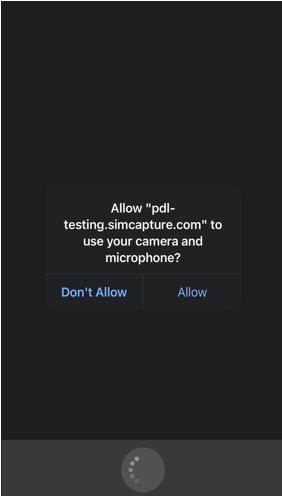
When prompted, select Allow to enable recording.

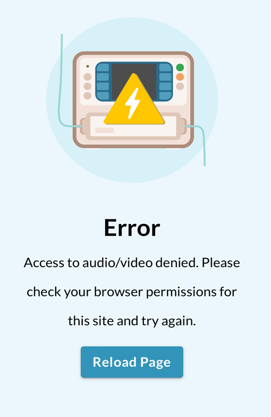
If you selected Don’t Allow, an error screen appears.
Select Reload Page and try again.

Internet Connection Errors

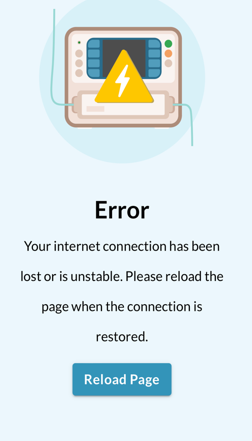
A poor connection may interrupt recording. Reconnect to Wi‑Fi and select Reload Page to continue.

Why Use Self‑Record?

Self‑recording helps you:

  • Practice independently and at your own pace
  • Review your performance on video
  • Identify improvement areas before peer or instructor assessments
simulation video recording self-record feature simcapture for skills healthcare skills training simulation education platform simcapture mobile interface hybrid learning simulation simulation lab tools self-evaluation peer evaluation learner video submission clinical skills recording simulation-based learning hands-on skills assessment mobile skills practice simulation video review simulation reflection questions simulation session submission camera and microphone access simulation troubleshooting simulation recording errors simulation learning outcomes simulation-based education tools simcapture browser support simulation sso login

Was this article helpful?

Yes
No
Give feedback about this article

Related Articles

  • Assigning and Evaluating Student Self-Record Sessions in SimCapture
  • Practice With a Peer Using One Device | SimCapture for Skills
  • Practice With a Peer Using Two Devices | SimCapture for Skills

Country and Language selector

Americas

  • América Latina (Español)
  • Brasil
  • Canada
  • USA

Asia / Pacific

  • Australia
  • China - 简体中文
  • Hong Kong
  • India
  • Japan - 日本
  • Korea - 한국어
  • Malaysia
  • New Zealand
  • Singapore (English)

Europe

  • België (Nederlands)
  • Belgique (Français)
  • Danmark
  • Deutschland
  • España
  • France
  • Italia
  • Nederland
  • Norge
  • Österreich
  • Polska
  • Schweiz
  • Suomi
  • Sverige
  • United Kingdom

Location not listed?

  • International (English)
Top
  • Products

    • Simulation & Training
    • Skills Proficiency
    • Courses & Learning
    • Medical Devices
  • Services

    • Educational Services
    • Technical Services
    • Resuscitation Quality Improvement
    • NESTLED
  • Insights

    • Events
    • SUN
  • Support

    • Contact Us
    • Customer Service
    • Product Catalogue
    • Product Downloads
    • Product Support & FAQs
  • About Us

    • One Million Lives - Our shared goal for 2030
    • Impact Update - Laerdal report on sustainability
    • Working at Laerdal
    • Our Partners
  • Facebook
  • Twitter
  • YouTube
  • Privacy Policy
  • Terms of Use
  • Sitemap
  • Whistleblower Channel
Copyright © 2022 Laerdal Medical. All Rights Reserved.

Knowledge Base Software powered by Helpjuice

Definition by Author

0
0
Expand