CA French (Canada)
US English (US)
KR Korean
MX Spanish (Mexico)

Contact Us

If you still have questions or prefer to get help directly from an agent, please submit a request.
To find the contact information for your local office please visit:

Laerdal Customer Service
  • Contact Us
English (US)
CA French (Canada)
US English (US)
KR Korean
MX Spanish (Mexico)
  • Home
  • SimCapture Cloud Administrator and Faculty Help
  • SimCapture Cloud Tutorials
  • Pro

SimCapture Pro: Administrator iOS app

Mobile access and control for SimCapture administrators

Written by Jeri Ellis

Updated at May 11th, 2026

Contact Us

If you still have questions or prefer to get help directly from an agent, please submit a request.
To find the contact information for your local office please visit:

Laerdal Customer Service

Table of Contents

Before You Begin App Features Features Not Supported in the iOS App Using the app
  • SimCapture Cloud Release Notes
    Release Notes Archive
  • SimCapture Cloud Administrator and Faculty Help
    SimCapture Cloud Getting Started SimCapture Cloud Tutorials SimCapture Cloud Troubleshooting
  • SimCapture Cloud Learner Help
  • SimCapture On-Premise Help
    SimCapture On-Premise Release Notes SimCapture On-Premise Migration tool SimCapture On-Premise Enterprise SimCapture On-Premise Pro SimCapture On-Premise Enterprise with Exam System SimCapture On-Premise Use Cases SimCapture On-Premise Getting Started
  • SimCapture for Skills Help
    SimCapture for Skills Administration Documentation SimCapture for Skills Student Documentation SimCapture for Skills Use Cases SimCapture for Skills Tutorial Videos
  • SimCapture Mobile Camera App
  • SimCapture Companion Apps Help
  • SimCapture Integrations Help
  • Samaritan AI Help
    Evaluation Builder Session Video Transcription
  • SimCapture Cloud Use Cases
    Enterprise Cloud Use Cases Pro Cloud Use Cases
  • Hardware and Network Technical Information Help
  • Glossary
+ More

The SimCapture Cloud iOS app allows administrators to record, annotate, and upload session videos directly from iOS devices. This article explains app availability, requirements, supported features, and how to record and upload sessions using the app.

Before You Begin

App Availability

  • The SimCapture Cloud iOS app is free for current SimCapture Cloud subscribers.
  • Download the app from the Apple App Store by searching for SimCapture Cloud or visiting the App Store from your iOS device.

Required Permissions

To use the mobile app, users must:

  • Be an Administrator or System Administrator
  • Have permission to Start, Join, and Manage Sessions

Supported Devices

  • The app supports iPhone and iPad
  • Some administrative features are iPad only (noted below)

App Features

Recording and Sessions

  • Record, annotate, and upload session videos
  • Associate recordings with Scenarios, Locations, and Organizations
  • Debrief sessions recorded with or without the app
  • Share recorded sessions with other users directly from the app

Administrative Features (iPad only)

  • Manage Users, Scenarios, and Sessions
  • View system usage reports

Features Not Supported in the iOS App

The SimCapture Cloud iOS app does not support:

  • Live streaming
  • Simulator data integration
  • LLEAP data
  • Monitor feeds

These functions must be performed using the web application or supported hardware.

Using the app

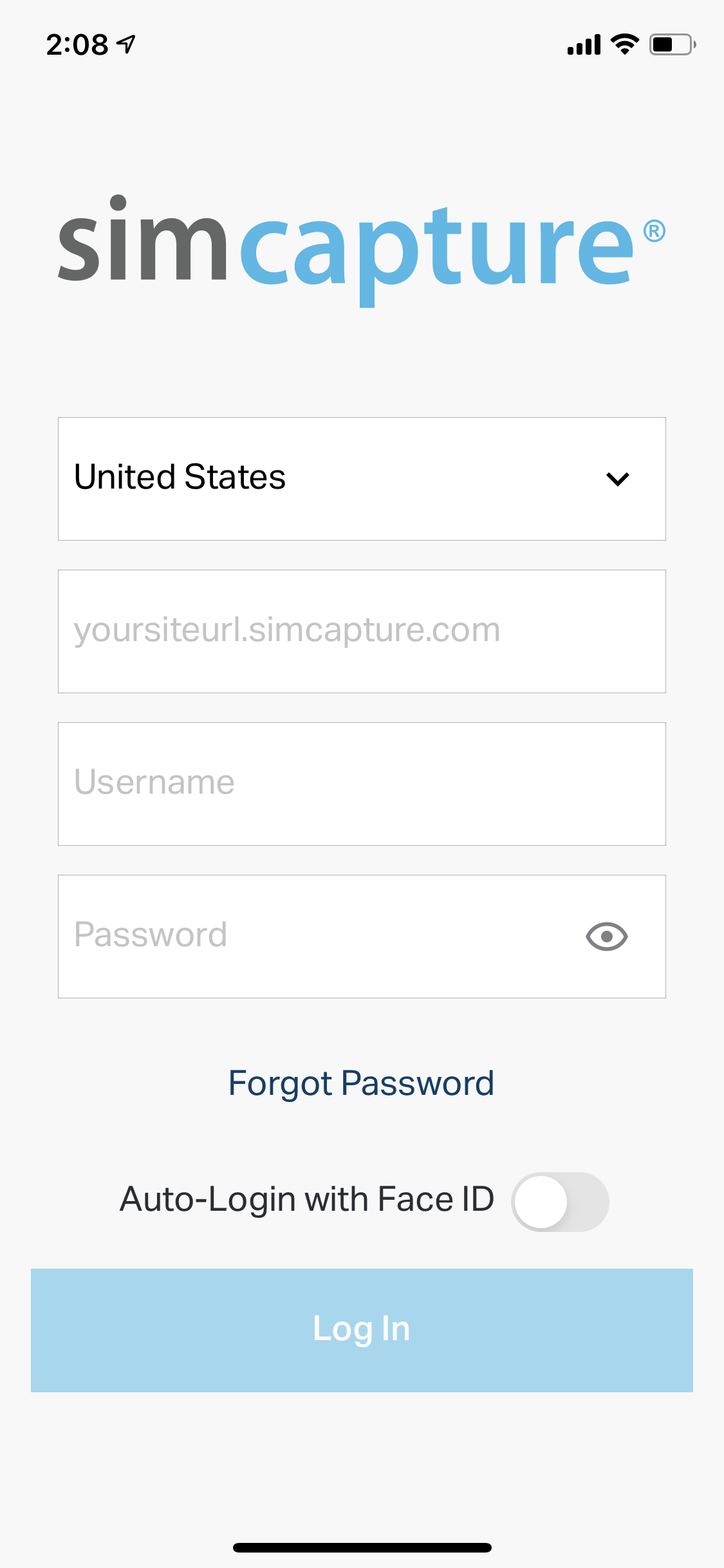
Log Into the App

  1. Open the SimCapture Cloud iOS app.

  2. Select your region .

  3. Enter your SimCapture Cloud site URL .

  4. Enter your username and password . Use Reset Password if needed.

  5. If supported on your device, enable Touch ID or Face ID for future logins.

Image_from_iOS.png

Start a session

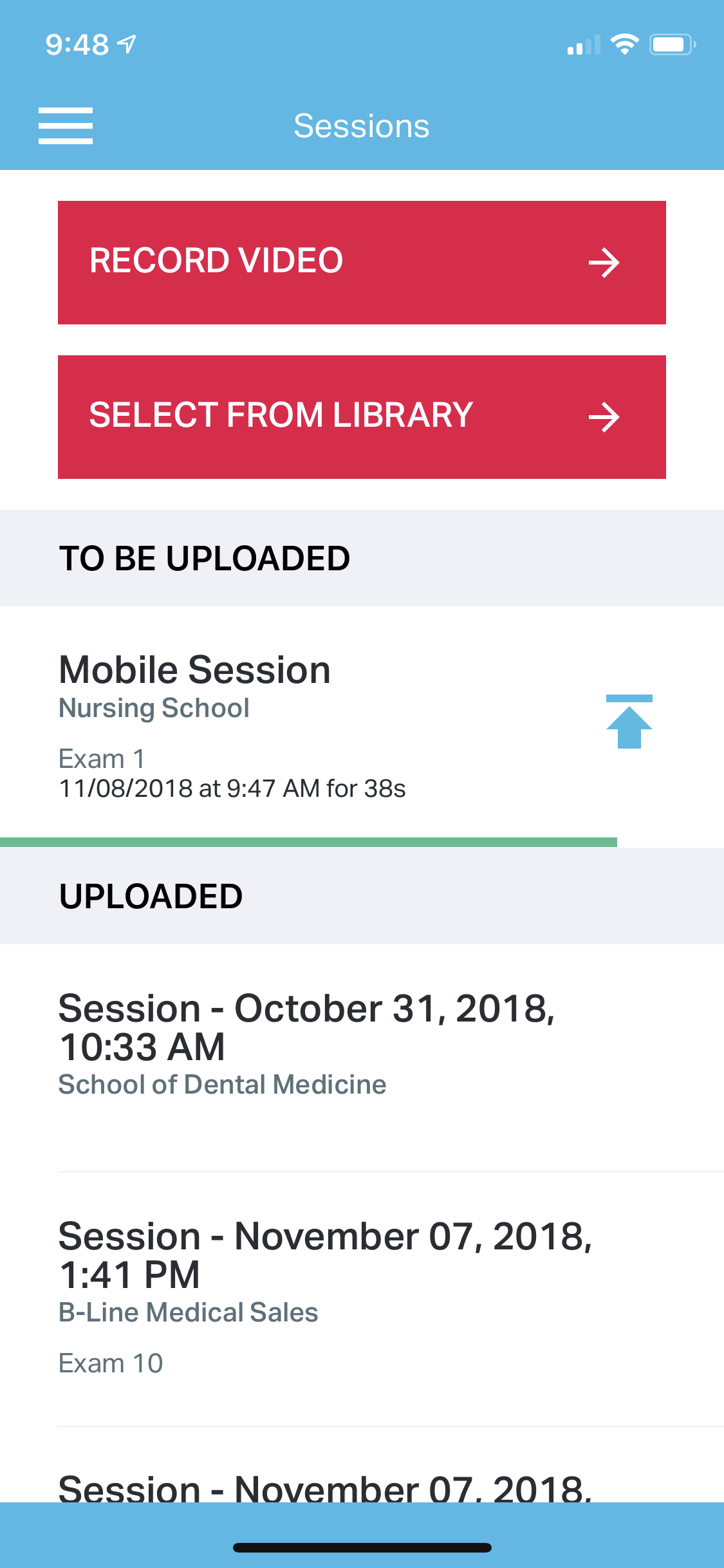
After logging in, you will see a Sessions list where you can:

  • Play back existing sessions
  • Start a new recording

Select Record to choose one of the following recording options:

Recording Options

  • Single Cam Recording
    Record using one device.

  • Host a Multi‑Cam Recording
    Act as the host device and allow up to three additional iOS devices to join as extra cameras.

  • Connect to a Host
    Join an existing multi‑cam session as an additional camera.
    This requires another device to already be hosting.

Important:
Only the host device can:

  • Start and stop recordings
  • Add annotations


Image_from_iOS__2_.png     iPhone_X_-_10_Upload_page.PNG

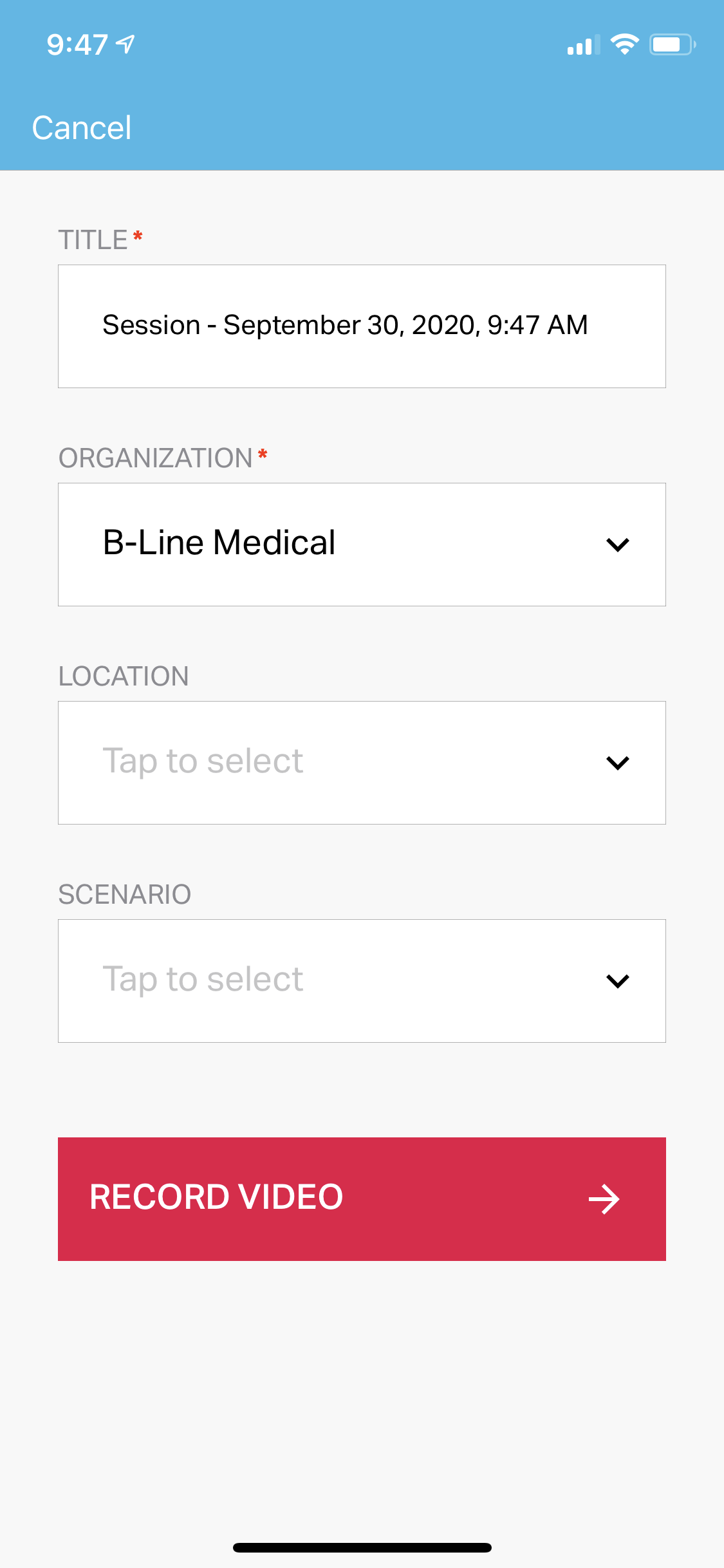
Record a session

  • Select your recording type.
  • Enter the session details:
    • Title
    • Scenario
    • Location
    • Organization
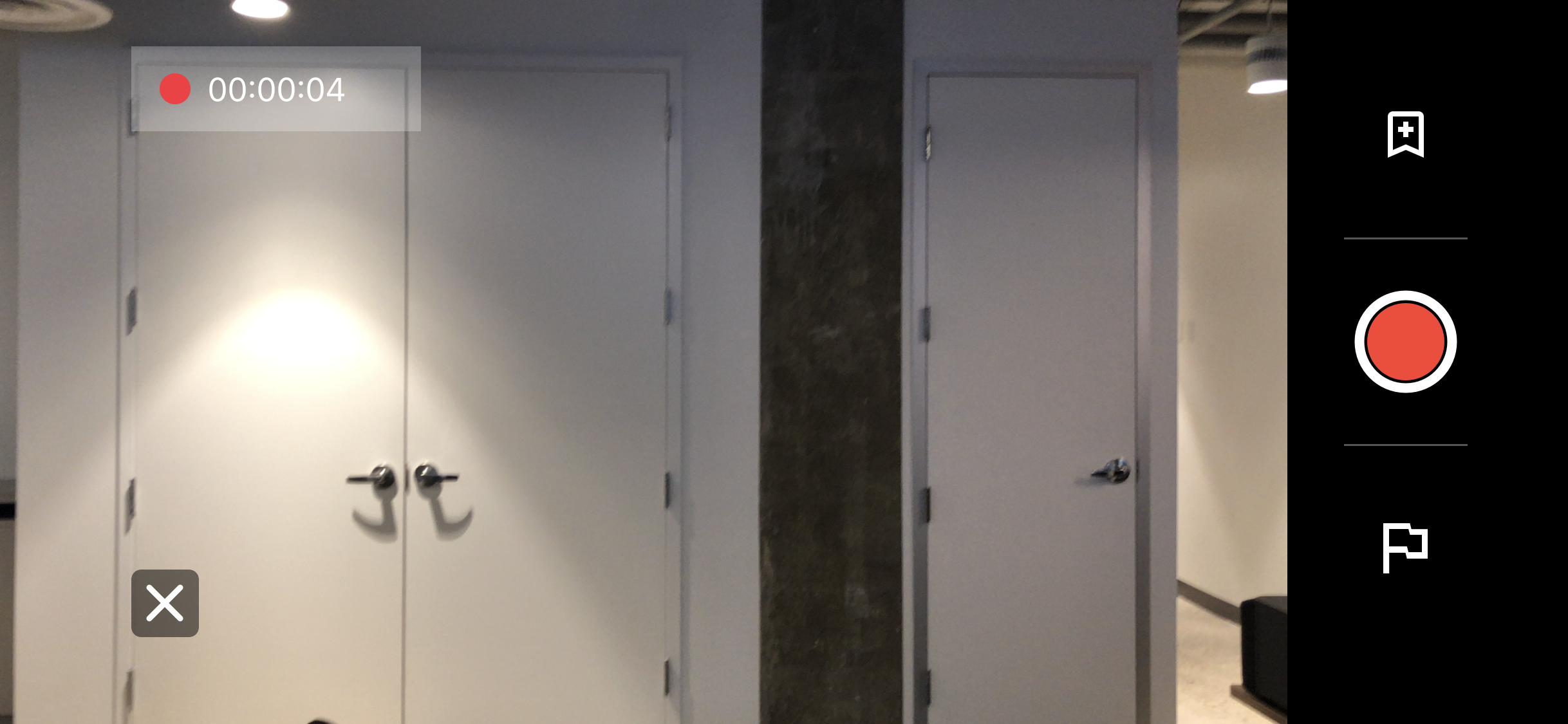
  • When the camera preview appears, tap Record to start.
  • If hosting a multi‑cam session, additional devices may connect.
  • Tap Record again and confirm to stop recording.


iPhone_X_-_4_Recording.PNG

Annotating a session

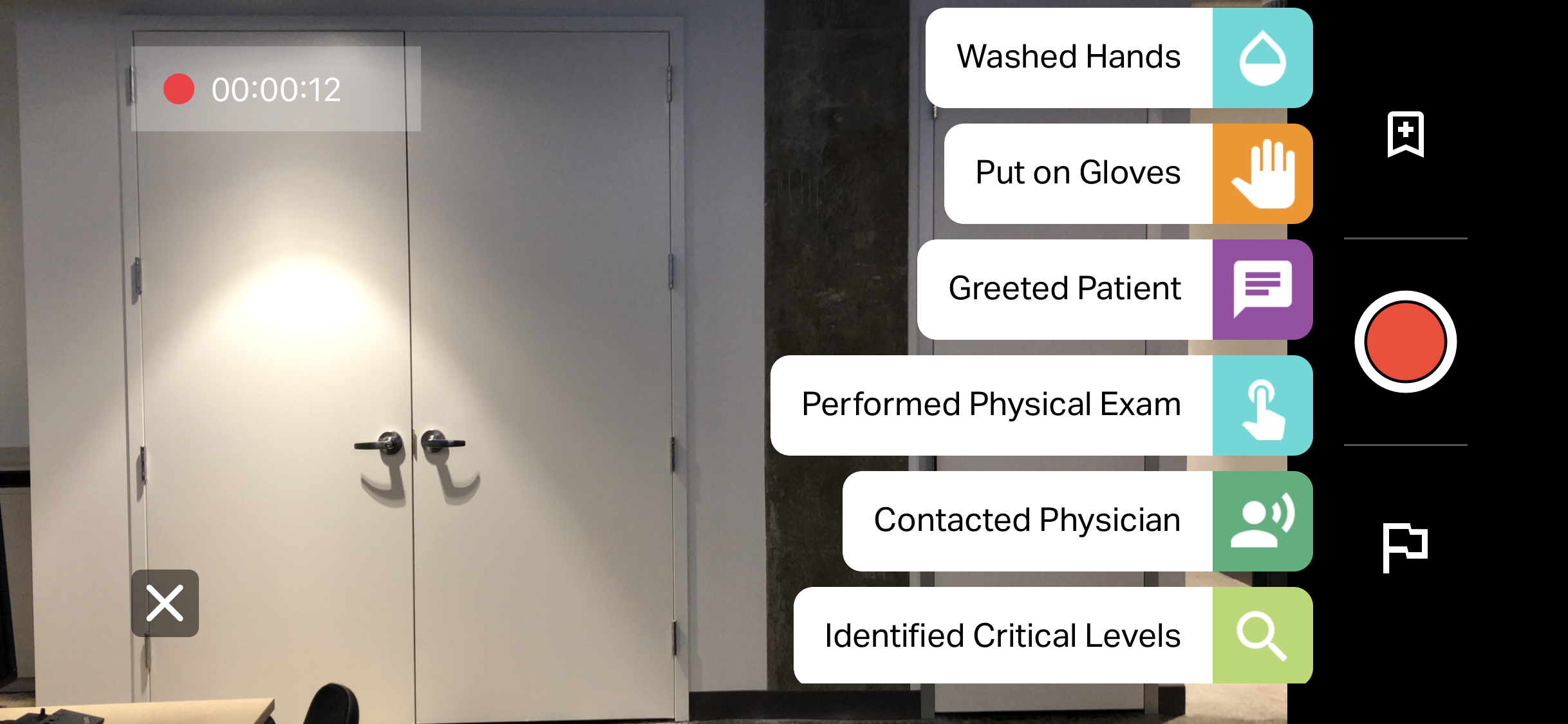
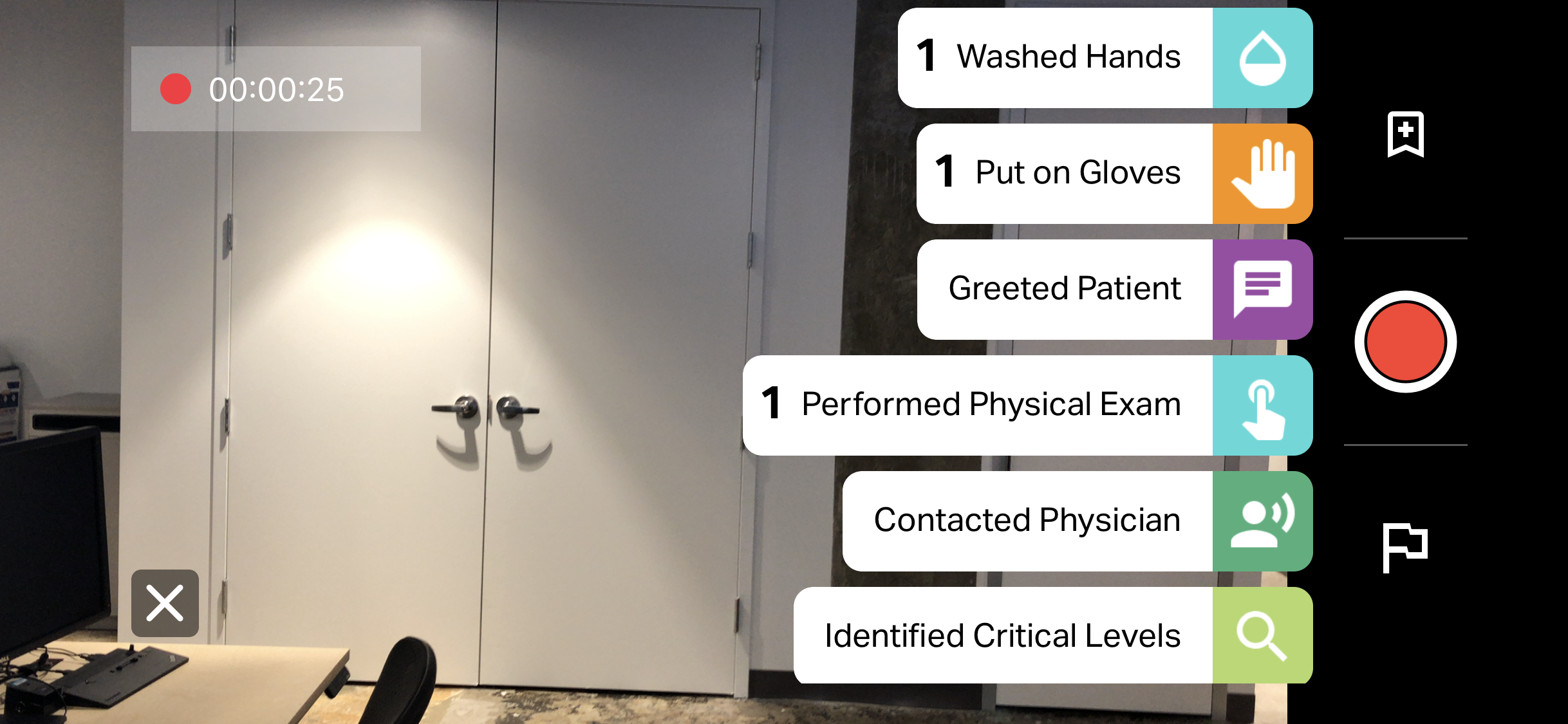
You can add annotations while recording to support later debriefing and review.

Predefined Annotations

  • Tap the bookmark icon to view predefined annotations.
  • Available annotations depend on the selected scenario .
  • If no scenario is selected—or the scenario has no annotations—this option is unavailable.
  • Tapping an annotation adds a timestamped bookmark.
  • The annotation count updates in real time.

Generic Bookmarks

  • Tap the flag icon to add a generic bookmark.
  • Generic bookmarks can be reviewed and edited during debriefing.


iPhone_X_-_5_Predefined_annotation_list.PNG

Image result for down arrow

iPhone_X_-_6_Predefined_Annotation_numbers.PNG  

Saving and Upload the Session

After stopping the recording:

  • You are returned to the Sessions list on each device.
  • The session begins uploading automatically when a network connection is available.

Connectivity Notes

  • If Wi‑Fi is unavailable , the upload will pause.
  • You can select the upload arrow to upload using cellular data if needed.
  • Uploads resume automatically when connectivity is restored.


    iPhone_X_-_10_Upload_page.PNG
simcapture pro administrator ios app simcapture cloud mobile app ios app session recording annotate sessions upload videos manage users manage scenarios manage sessions system usage reports mobile debriefing ipad features session playback single cam recording multi-cam recording host recording join session mobile configuration app login touch id face id simcapture cloud url reset password mobile session management mobile video capture simcapture mobile tools

Was this article helpful?

Yes
No
Give feedback about this article

Related Articles

  • Create Scenarios in SimCapture | Admin Guide
  • Managing Sessions in SimCapture Pro | Admin Overview

Country and Language selector

Americas

  • América Latina (Español)
  • Brasil
  • Canada
  • USA

Asia / Pacific

  • Australia
  • China - 简体中文
  • Hong Kong
  • India
  • Japan - 日本
  • Korea - 한국어
  • Malaysia
  • New Zealand
  • Singapore (English)

Europe

  • België (Nederlands)
  • Belgique (Français)
  • Danmark
  • Deutschland
  • España
  • France
  • Italia
  • Nederland
  • Norge
  • Österreich
  • Polska
  • Schweiz
  • Suomi
  • Sverige
  • United Kingdom

Location not listed?

  • International (English)
Top
  • Products

    • Simulation & Training
    • Skills Proficiency
    • Courses & Learning
    • Medical Devices
  • Services

    • Educational Services
    • Technical Services
    • Resuscitation Quality Improvement
    • NESTLED
  • Insights

    • Events
    • SUN
  • Support

    • Contact Us
    • Customer Service
    • Product Catalogue
    • Product Downloads
    • Product Support & FAQs
  • About Us

    • One Million Lives - Our shared goal for 2030
    • Impact Update - Laerdal report on sustainability
    • Working at Laerdal
    • Our Partners
  • Facebook
  • Twitter
  • YouTube
  • Privacy Policy
  • Terms of Use
  • Sitemap
  • Whistleblower Channel
Copyright © 2022 Laerdal Medical. All Rights Reserved.

Knowledge Base Software powered by Helpjuice

Definition by Author

0
0
Expand